
Screen automation for Windows
When the picture shows up, PALO clicks it.
Pick a button, icon or anything else on your screen. PALO watches for it, draws a box around every match, then clicks, presses keys or types for you. Loop it as long as you like.
Free · Windows 10 and 11, 64-bit · free account needed
Features
Everything a repetitive task needs
PALO only looks at your screen and sends normal mouse and keyboard input, so it works with almost any program or game.
Find any image
Drag a box around anything on screen to capture it. Set how close a match must be, search in grayscale, or limit the search to one area.
Click, press, type
Left, right, double or middle click, move the mouse, press keys like ctrl+c or f5, or type whole lines of text.
Up to 50 matches
Handle every copy of an image in one step, best match first or top-left to bottom-right, with a set time on each one.
Live boxes and timers
See a box, score and timer on every match while a task runs, or use detect-only mode to just watch the screen.
Edit while it runs
Change a step, the loop count or the delay and it applies at once. No stopping and starting again.
Stop any time
F8 starts and stops, F9 quits. Move the mouse to the top-left corner of the screen for an emergency stop.
The app
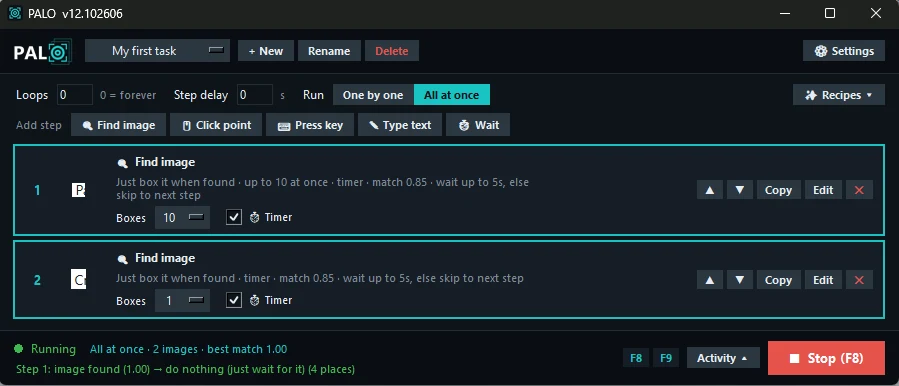
This is PALO
Every task is a list of steps. Choose One by one or All at once, watch the live status at the bottom, and press F8 to stop.
How it works
A task is a short list of steps
Capture what to look for
Add a Find image step and drag a box around the button or icon. Click Test to see the match score.
Choose what happens
Pick the action when it is found, then add more steps: click a point, press a key, type text or wait.
Start it
Set the number of loops (0 runs forever) and press
F8. Ready-made recipes help you start faster.
Privacy and safety
Your screen stays on your computer
Nothing leaves your PC
Image search runs on your computer. PALO never uploads screenshots, captured images, tasks or anything you type.
Signed updates
Every update is digitally signed and checked before it installs. Your tasks, images and settings are kept.
Free, no ads
Every feature is free. Usage statistics are anonymous, and you can turn them off in Settings.
FAQ
Questions
Is PALO really free?
Yes. Every feature is included at no cost. You only need a free account, made with your email or Google.
Why does Windows show a warning when I install it?
PALO is not yet signed with a code-signing certificate, so Windows SmartScreen may say it is an unrecognized app. Click More info, then Run anyway.
Why does PALO ask for administrator rights?
Some programs and games run as administrator. Windows only lets an app click inside them if it also runs as administrator.
Can I use PALO in online games?
Check the game's rules first. Many online games do not allow automation and may ban accounts that use it. You are responsible for how you use PALO.
Can I use my account on two computers?
An account works on one computer at a time. You can move it to another computer once a month in the app.
How do I move my tasks to a new computer?
Copy the tasks and images folders from the PALO folder to the same place on the new computer.
Get PALO for Windows
Install, create a free account, confirm your email, and make your first task.
PALO opens to everyone soon. Questions: [email protected]
- System
- Windows 10 or 11, 64-bit
- Download
- About 90 MB
- Account
- Free, email or Google, age 13+
- Updates
- Automatic and signed
- Language
- English